
Last updated: · By Asael Dreyer
In short: a 404 error (Not Found) means the server received the request but couldn’t find the page or file. On WordPress at Cloudways, the usual causes are permalinks that need re-saving, an htaccess file that didn’t come across in a site migration, an application on the Lightning Stack with htaccess rules that never get read, file permissions, a problematic plugin, or stale cache. In most cases, re-saving the permalinks under Settings and then Permalinks, plus clearing the cache, fixes it in two minutes.
What a 404 error is and how it differs from other errors
With a 404 the server is working and the site is answering, but the address you asked for leads nowhere. That’s the difference from a 500 error, where the server gets stuck halfway through handling the request, and from 502 and 504 errors, where one part of the server didn’t respond in time.
| Error | What happened | Where to start |
|---|---|---|
| 404 Not Found | The request arrived, the page or file wasn’t found | Permalinks, htaccess, a deleted page |
| 500 Internal Server Error | PHP code or a setting crashed | The guide to the 500 error |
| 502, 503, 504 | A service on the server didn’t respond in time | The guide to 502–504 errors |
| White screen | PHP failed without showing a message | The white screen guide |
It’s also worth knowing that WordPress itself returns a 404 for any address that has no post or page. So a single 404 on a mistyped URL is normal. What you need to deal with is a 404 on pages that should exist.
What to prepare before you start
- Access to the WordPress dashboard, and if it doesn’t load, SSH or SFTP access. See the WP-CLI guide.
- A backup before you edit htaccess or disable plugins on a live site.
- A list of two or three addresses that return 404, so you can check after each step whether the problem is solved.
Quick diagnosis: what you see and the likely cause
The type of 404 tells you a lot about the cause. Find the row that matches your case and jump to the relevant step.
| What you see | Likely cause | What to do |
|---|---|---|
| The home page works, every other page is a 404 | The permalink rules aren’t loading | Steps 3 and 4 |
| Everything is a 404 after a manual site migration | The htaccess file (a hidden file) wasn’t copied | Step 4 |
| Redirect rules or custom htaccess don’t work | The application is on the Lightning Stack, with no Apache | Step 5 |
| Specific pages that were deleted or changed address | The page really doesn’t exist | A 301 redirect (see the redirects section) |
| Images, CSS or JS return 404 | Missing files, a damaged theme, or a permissions problem | Steps 6 and 7 |
| 404 only after installing a plugin | The plugin changes URL rules or blocks requests | Step 7 |
| You fixed it and still see a 404 | Stale cache (Varnish, Breeze, browser) | Step 2 |
| Multisite subsites in a subdirectory | A network that depends on htaccess on the Lightning Stack | Step 5 |
| The whole site is a 404 or shows a different site | The domain isn’t attached to the application, or the Web Root is wrong | Step 8 |
How to fix a 404 error, step by step
Go through the steps in order. They run from the quickest and most common to the rarest.
Step 1: Check the address and the logs
- Open the address in an incognito window and check for a typo, an extra slash or capital letters where there should be lowercase.
- In the Cloudways panel open the application, then Monitoring, Logs and Access Logs.
- Look for requests with a 404 status. You’ll see exactly which addresses fail, and whether a bot is crawling addresses that don’t exist.
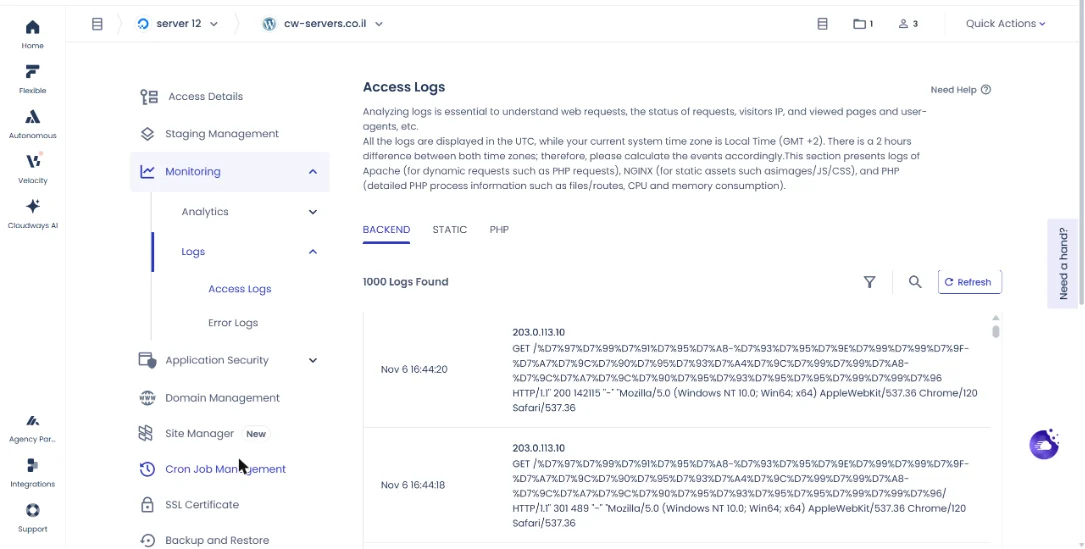
A full explanation of the logs and Debug mode is in the guide to logs and debugging.
Step 2: Clear the cache
If you’ve already fixed something, or the page worked an hour ago, you may be seeing an old 404 response from the cache.
- In the panel, in the application settings, click Purge to clear Varnish.
- In WordPress, clear the Breeze cache, or the cache of whichever caching plugin you use.
- Check again in an incognito window.
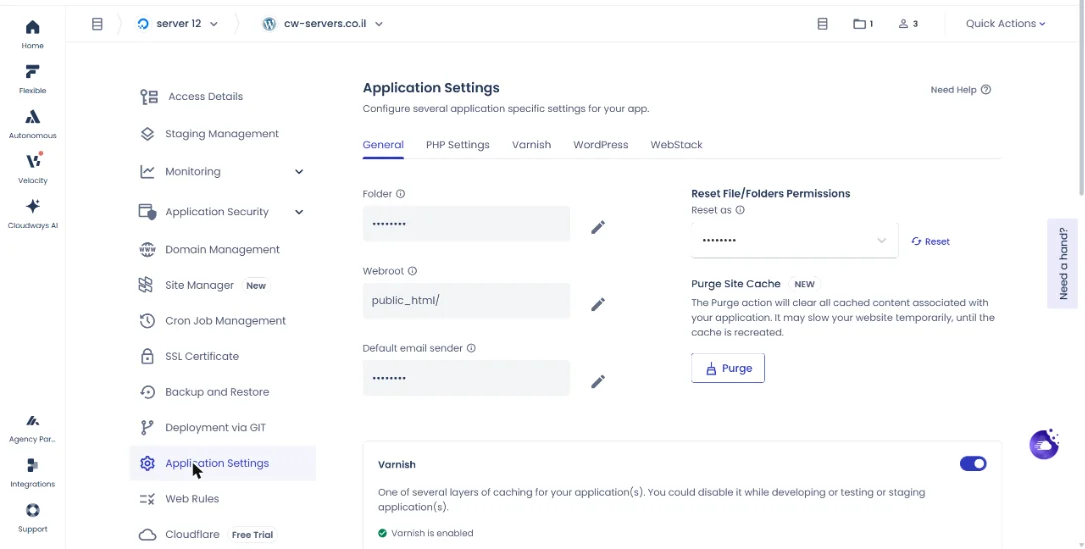
All the cache types and the ways to clear them are collected in the guide to clearing cache on Cloudways.
Step 3: Re-save the permalinks
This solves more than half of the cases where the home page works and the inner pages don’t. Saving rebuilds WordPress’s URL rules.
- In the WordPress dashboard go to Settings and then Permalinks.
- Without changing anything, click Save Changes.
- Check the addresses that failed.
If the dashboard doesn’t load, do the same from the terminal:
wp rewrite flushStep 4: Check the htaccess file (on the Hybrid Stack)
On the Hybrid Stack, where Nginx and Apache work together, Apache reads .htaccess in the public_html folder. In a manual migration the file sometimes gets left behind because it’s hidden, and then WordPress can’t route addresses.
- Connect over SFTP or through the file manager, and turn on showing hidden files.
- Check that the
public_htmlfolder contains a.htaccessfile, and that it includes the default WordPress block. - If it’s missing or broken, keep a copy of the existing one and create a file with this block:
# BEGIN WordPress
<IfModule mod_rewrite.c>
RewriteEngine On
RewriteBase /
RewriteRule ^index\.php$ - [L]
RewriteCond %{REQUEST_FILENAME} !-f
RewriteCond %{REQUEST_FILENAME} !-d
RewriteRule . /index.php [L]
</IfModule>
# END WordPress
The RewriteEngine On line is what switches on mod_rewrite in the file. Without it there are no permalinks. Rules from plugins, such as redirects or security, should sit above or below this block, not inside it.
Step 5: Lightning Stack, custom rules and Multisite
On the Lightning Stack the server runs on Nginx only, with no Apache. An htaccess file simply isn’t read. Standard WordPress works there without trouble, but any custom rule that lives in htaccess, such as old redirects or the routing of subsites in a subdirectory Multisite, won’t take effect.
- In the application settings, check the WebStack tab: Lightning or Hybrid.
- If you have htaccess rules the site depends on, move them to Web Rules, or go back to the Hybrid Stack.
- A subdirectory Multisite network that came from another host usually needs Hybrid. More in the WordPress Multisite guide.
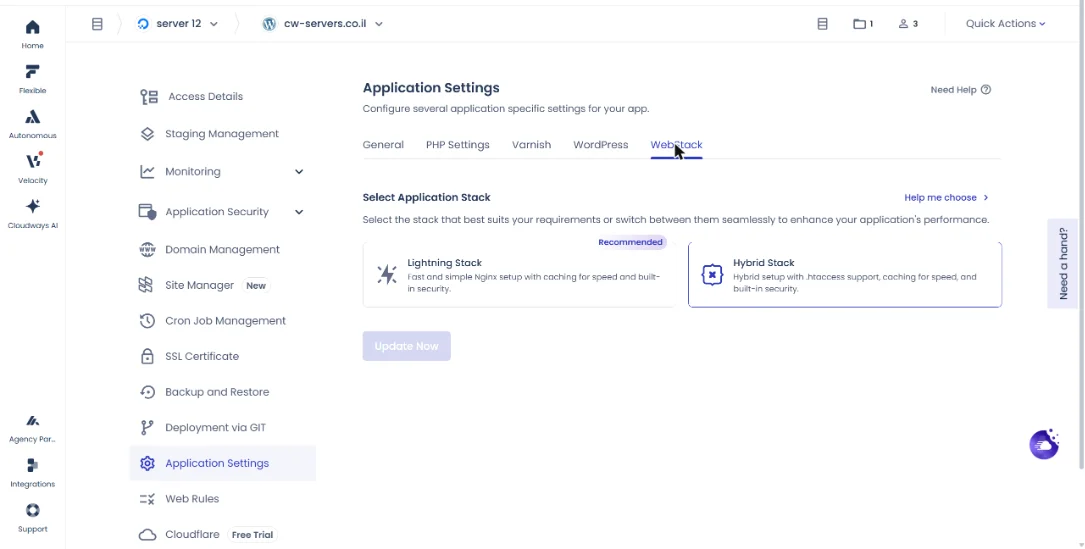
Step 6: Reset file permissions
Wrong permissions, for example after an SFTP upload with a different user, can stop the server from serving files, and sometimes that looks like a 404 on images or CSS files.
- In the application settings find Reset File/Folders Permission.
- Choose a user. Usually the application user, not the master user.
- Click Reset. Folders get permission 775 and files 664, inside public_html.
Step 7: Plugins, theme and PHP memory
- Disable plugins that were recently installed or updated, especially redirect, security, language and caching plugins. No dashboard access?
wp plugin deactivate plugin-name. - If the 404 shows up only on theme files, switch temporarily to a default theme. A theme with missing files produces 404s on CSS and JS.
- On Elementor sites, regenerate the CSS files from the Elementor settings so they don’t point to files that were deleted.
- Cloudways notes that exhausting PHP memory can also lead to a 404. In the panel choose the server, then Settings & Packages and the Basic tab, and raise the Memory Limit (the default is 256MB). Recommendations by server size are in the PHP settings guide.
Step 8: Whole site is a 404? Check the domain and Web Root
- In the application’s Domain Management, make sure the domain is set as primary or additional in the right application.
- Make sure the domain’s A record points to this server’s IP address, not to an old server.
- In the application settings check the Web Root. The default is
public_html. If someone changed it to an empty folder, the whole site will return 404. - If you changed the domain manually, make sure the address was updated in the database too, with a search-replace.
After all the changes, Cloudways recommends clearing Varnish and restarting Memcached from Manage Services on the server, if it’s active, and then checking in a fresh browser window.
The code BFCM802 takes 80% off your bill for the first two months (up to $200 off per month), including unlimited free site migrations. New customers only, and only until the offer ends.
The offer ends on December 4, 2026 at 23:59 (UTC+2).
Start with a free trial, no credit card. Enter the code at checkout and check that it shows up.
After Black Friday: 30% off for 3 months with the code ASAEL. On a large server (above about $444 a month) ASAEL already saves more today. BFCM802 vs. ASAEL calculator
Start a free trial server, no credit card. When you move to a paid plan, the code ASAEL takes 30% off your bill for the first three months.
The link fills in the code on the signup form. Just make sure it shows up.
How to handle a page that was deleted or changed address (301 redirects and SEO)
When a page really doesn’t exist any more, there’s nothing to “fix” on the server. What you do need is to decide where to send whoever lands on it.
| Situation | What to do |
|---|---|
| The page moved to a new address | A 301 redirect to the new address |
| A similar page replaces it | A 301 redirect to the similar page |
| The content is gone entirely with no replacement | Leave the 404 (or 410), with a useful 404 page |
| Many old URLs after a restructure | A general redirect rule in Web Rules or htaccess |
You set up redirects in Web Rules in the panel, in htaccess on the Hybrid Stack, or with a redirect plugin in WordPress. Don’t redirect every 404 to the home page: Google treats that as a soft 404, and the visitor doesn’t get what they were looking for. To see which addresses Google finds as 404, check the pages report in Google Search Console.
URLs with non-Latin characters: an address with non-Latin characters in the path is sent to the server percent-encoded (%D0%...). When you set up a redirect for such an address, test it in the browser after saving, because some tools expect the encoded version and some expect the plain characters.
Common mistakes and how to fix them
You saved the permalinks and still get a 404: check that the cache was cleared, and then the Stack. On Lightning, a plugin that writes rules to htaccess won’t have any effect.
You uploaded an old htaccess from your previous host and the site went down completely: rules from another server, such as PHP settings or redirects to old paths, don’t suit Cloudways. Keep only the WordPress block, and add rules one at a time. If the site returns a 500, see the guide to the 500 error.
wp-admin returns a 404: a security plugin changed the login address. Try the address you set in the plugin, or disable the plugin from the terminal.
404 on images after a migration: the uploads folder wasn’t copied in full, or the addresses in the database point to the old domain. Check the files on the server and replace the addresses with a search-replace.
Lots of 404s from odd addresses like wp-login or .env: these are bots scanning for vulnerabilities. It isn’t a fault in the site, but a large volume loads the server. See the guide to high CPU load.
Sources
The official sources this page is based on (checked 7 Nov 2026):
- Cloudways Knowledge Base: How to change your application stack
- Cloudways Knowledge Base: How to resolve 404 not found error
- Google Search Central: How HTTP status codes affect Google’s crawlers
Frequently asked questions
Because WordPress’s permalink rules aren’t loading. Go to Settings and then Permalinks and click Save Changes, or run wp rewrite flush. If that doesn’t help, check that an htaccess file exists on the Hybrid Stack.
A 404 on addresses that never existed does no harm. A 404 on pages that used to rank loses the ranking and the links that pointed to them. That’s why you redirect pages that changed address with a 301, and leave a 404 only for content that was deleted with no replacement.
Most likely the application runs on the Lightning Stack, which has no Apache, so htaccess isn’t read at all. Move the rules to Web Rules, or switch to the Hybrid Stack in the WebStack tab of the application settings.
No. Google treats a blanket redirect to the home page as a soft 404, and the visitor doesn’t find what they were looking for. Redirect each address to the most relevant page, and keep a 404 page with a search box and links to your main content.
Three things, in order: that the htaccess file was copied (it’s hidden), that the permalinks were re-saved, and that the domain in the database was updated to the new address. Then clear the cache.
Related guides
- The 500 Internal Server Error on Cloudways
- 502, 503 and 504 errors on Cloudways
- White screen and stuck maintenance mode
- A slow site and high CPU load
- Web Rules, htaccess and redirects
- Logs and Debug mode on Cloudways
- All the guides on this topic: Troubleshooting on Cloudways
- My review of Cloudways hosting
Official source: How to Resolve 404/Not Found Error, How to Change Your Application Stack (Cloudways Knowledge Base). This guide was written and tested by Asael Dreyer · Updated: 6 Nov 2026
Disclosure: this is an independent site, not the official Cloudways site. Some links on this site are affiliate links: if you sign up through them we earn a commission, at no extra cost to you. Full details

