
Last updated: · By Asael Dreyer
Short answer: all invoices and payment methods on Cloudways are managed in the Billing area, which opens from the profile icon in the top corner of the panel. From there you download a Cloudways invoice as PDF or CSV (Billing History), update your credit card, address and business details (Settings), and pay with PayPal or prepay a balance with Make a Payment. Most card payment problems are solved with one call to your card issuer, or by switching temporarily to PayPal.
How payment works on Cloudways, in three sentences
Before the buttons, three principles that explain almost every question about invoices.
You pay afterwards, based on usage. Cloudways works on a Pay-As-You-Go basis: there’s no upfront payment for a month, and at the start of each month an invoice is issued for what you used in the previous month. A server you kept for ten days and then deleted shows up on the next invoice, for those ten days only.
There’s a fixed order for collection. First credits and discounts, then any balance you prepaid, and only then your primary payment method (and a backup method, if the primary one fails). If the balance doesn’t cover the whole invoice, the difference is charged to your card.
Only the primary account owner changes billing details, unless they’ve given a team member billing permissions. The full explanation of the billing model, hourly billing and caps is in the guide to Cloudways billing. Here I’ll focus on the actual tasks and on troubleshooting.
How to get to the Billing area
- Log in to the admin panel.
- Click the profile icon in the top right corner.
- Choose Billing from the menu.
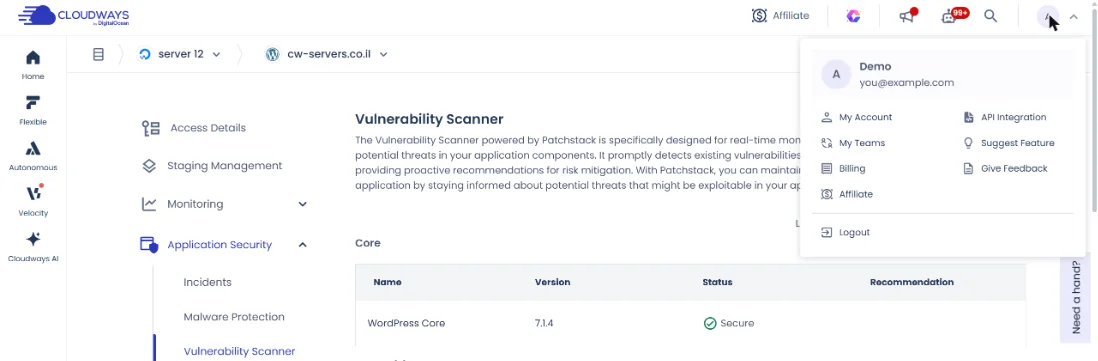
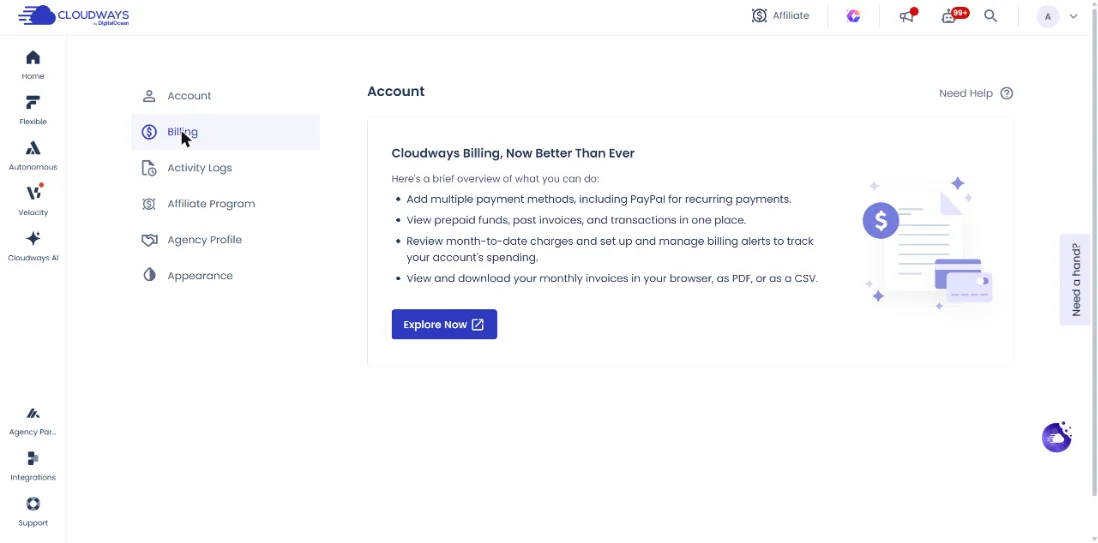
The first time you go in, you may see a welcome page called “Cloudways Billing, Now Better Than Ever” (in the image). Continue from it with Explore Now. If you’re still on the old (Classical) interface: Account from the profile menu, then Billing in the side menu, and clicking Go to Billing takes you to the new interface.
| Tab | What you go there for |
|---|---|
| Overview | See how much is due this month, and pay (Make a Payment) |
| Billing History | Download invoices, check payments and top-ups |
| Credits & Discounts | Check that a discount code and credits were applied |
| Settings | Billing address, Tax Location and payment methods |
How do you download a Cloudways invoice as PDF or CSV?
- In the Billing area open Billing History.
- Find the invoice for the month you want, and click the three dots at the end of the row.
- Choose Download PDF (for filing and your accountant) or Download CSV (for analysis in a spreadsheet).
Invoices from before the move to the new billing system are under View Old Billing History, on the same page. There you click the invoice number (ID) to download a PDF, and there’s also an old top-up history (Funds History).
A tip for businesses: the business details that appear on the invoice (company name, address) are taken from Settings. Fill them in before the first invoice, because it’s easier than fixing them afterwards. Questions about VAT or sales tax on a cloud service billed from abroad are for your accountant. In any case, check your first invoice.
How do you update your credit card, address and business details?
Billing address and business name
- In the Billing area open Settings.
- In the Billing Address section click Edit Details.
- Update the address, city, company name and postal code.
- Click Save Changes.
Below that is Tax Location: the country and tax region used to calculate taxes on the invoice. Check that your country appears. To change it, there’s a link to an explanatory article in the same place.
Updating or adding a credit card
- In Settings scroll to Payment Method.
- To update an existing card: click the three dots next to the card, choose Edit, make your corrections and click Update Payment Method.
- To add a new method: click Add Payment Method, choose Credit/Debit Card or PayPal, fill it in and click Add Payment Method.
When you add a card, the payment processor Stripe may place a temporary authorization of $1 to $10 to make sure the card is valid. It isn’t a real charge, and the amount is cancelled automatically. According to the docs, an updated card usually appears in the system within 24 hours, and you can use it to top up your balance during that time.
My recommendation: add at least two payment methods. An expired card is a common reason for an unpaid invoice, and a backup method prevents the whole chain of trouble.
How do you pay with PayPal?
PayPal is available only after the account has moved from a free trial to a full account. Since April 2026 there’s also automatic recurring payment with PayPal, not just manual payment: from 1 April 2026 for new customers and after 16 April 2026 for existing customers. Here’s how to connect it and pay:
- In the Billing area, on the Overview tab, click Make a Payment.
- Choose Pay Estimated Due Amount (if it appears) or enter an amount manually.
- If PayPal isn’t connected yet: under Payment Method click Add New, choose the PayPal tab, enter a billing address and click PayPal’s yellow button to connect the account.
- Choose PayPal from the list of payment methods and click Submit Payment. You’ll be taken to PayPal’s site to confirm.
On the first connection there may be a one-time $5 verification. According to the docs, that amount is credited against your first invoice, so it isn’t an extra expense. If you want to upgrade a trial account to a full account using PayPal, you need to contact the Cloudways billing team, according to the docs.
Why it’s worth knowing about: PayPal is a good solution when your bank blocks charges on your card, and it lets you pay from a dollar balance if you earn in dollars, without a double conversion.
Prepaying a balance (Prepayment)
A prepayment is money you put into the account, and future invoices are deducted from it until it runs out. You can prepay up to 12 months ahead, based on your current usage. It’s useful for businesses that prefer to pay for a year at once, for client sites you don’t want depending on a card’s expiry date, and for anyone whose bank blocks recurring charges.
- In the Billing area, on the Overview tab, click Make a Payment in the top corner.
- Choose Add a Custom Amount and enter an amount in dollars.
- Choose a saved payment method (card or PayPal), or add a new one.
- Click Submit Payment. With a card you’ll be taken to the secure payment page, and with PayPal to confirm on their site.
After a successful top-up you’ll get a confirmation email, and the top-up will appear in Billing History.
Two points worth knowing:
- A top-up doesn’t pay an invoice that’s already open. If there’s an unpaid invoice, you need to pay it manually. The balance will only be used for future invoices.
- A partial balance: if the balance is smaller than the invoice, the difference is charged to your card. For example, a balance of $20 and an invoice of $23 will result in a $3 charge on your card.
The code BFCM802 takes 80% off your bill for the first two months (up to $200 off per month), including unlimited free site migrations. New customers only, and only until the offer ends.
The offer ends on December 4, 2026 at 23:59 (UTC+2).
Start with a free trial, no credit card. Enter the code at checkout and check that it shows up.
After Black Friday: 30% off for 3 months with the code ASAEL. On a large server (above about $444 a month) ASAEL already saves more today. BFCM802 vs. ASAEL calculator
Start a free trial server, no credit card. When you move to a paid plan, the code ASAEL takes 30% off your bill for the first three months.
The link fills in the code on the signup form. Just make sure it shows up.
What to do when a card is declined or you can’t add funds
When a card doesn’t go through, the problem is almost always on the bank or card issuer’s side, not in the panel. Go through the list in order:
- Call your card issuer. Make sure international and online transactions are allowed on the card, that Cloudways isn’t blocked as a merchant, and that the card is active. If your card is issued outside the US, start here. Sometimes the bank requires approval with a one-time code (3D Secure) or asks you to add Cloudways as an approved merchant.
- Check your limit. The available balance on the card, and any daily or monthly transaction limits.
- Re-enter carefully the card number, expiry and CVV.
- An “Invalid Request” error: clear your browser’s cookies, cache and history, and try again. The docs also suggest switching between the old and new interface.
- If it still doesn’t work: pay with PayPal so you don’t end up blocked, and open a ticket with the billing team. Include the exact error message, a screenshot and the payment method you tried.
An unrecognized charge on your card
Did you see a Cloudways charge on your statement and can’t tell where it came from? Before you dispute the transaction with your card issuer, check the common causes:
| What you saw | Likely explanation | How to check |
|---|---|---|
| A small, non-round amount (for example $3) | Topping up an invoice the balance didn’t fully cover | Download the latest invoice and check how much came off the balance |
| A charge that doesn’t match any of your accounts | Another Cloudways account that you (or an employee) opened with the same card | Log in to each account and check Billing History |
| A higher charge than usual | A cloned server that wasn’t deleted, backups, add-ons, or a team member who added a server | Check Overview and the account’s activity log |
| $1–10 that disappeared after a few days | A temporary authorization to verify the card | No action needed |
| $5 when connecting PayPal | PayPal account verification | Credited against the first invoice |
| A small percentage increase on the invoice | A tax or surcharge added based on the billing region. The docs mention, as an example, a 1% surcharge because of tariff changes in some regions, and it isn’t known whether it applies in your region | Check the tax and surcharge lines on the invoice, and if it isn’t clear, contact the billing team |
If you still can’t find it, contact the billing team with the amount and date of the charge, the last four digits of the card and the cardholder’s name, and a screenshot of the charge from your bank statement. Disputing a transaction with your card issuer without checking first can lead to the account being blocked and your sites being taken offline.
The account is blocked and you can’t log in to the panel
A block on panel access almost always comes from one of two causes: an open debt or a security mechanism.
A block because of an unpaid invoice
When an invoice isn’t paid, Cloudways sends reminders, and later locks the panel and stops the servers. The full timeline, up to data deletion, is in the billing guide. The good news: the Billing area stays open even when the account is blocked.
- Go to Billing and update your credit card, or pay with PayPal.
- If the system asks, top up a balance that covers at least 50% of the server’s cost. For example, $7 for a server that costs $14 a month.
- Confirm with your bank that the payment was approved.
- The system will try to charge the new card or deduct from the balance. As soon as the debt is paid, access returns immediately. If not, log out and log back in.
A block because of suspicious activity
Cloudways’ behavior monitoring system can temporarily lock an account when it detects unusual activity: setting up many servers in a short time, many clones or upgrades in a row, repeated failed server restore attempts (which can cause a 24-hour lock), or scripts placed in the master user’s folder instead of private_html. New accounts may be asked to deposit 50% of the server cost to remove restrictions.
To get it lifted: contact Cloudways’ Trust & Safety team through support, with your registered email address and a phone number to reach you. How to open a ticket properly is explained in the guide to contacting support. To avoid it in the first place: keep a balance on the account, don’t set up dozens of servers a day, and keep scripts in private_html.
If you’re an agency managing client servers, and the account owner is the client, consider team access instead of holding their card yourself. That way the client controls the payment, and you get on with the work.
Common mistakes and how to fix them
You topped up a balance and the invoice is still open: a top-up doesn’t pay an existing invoice. Pay it manually with Make a Payment.
You can’t see the billing option at all: you’re logged in as a team member without billing permission. The account owner needs to make the change, or give you permission.
PayPal doesn’t appear as an option: the account is still on a free trial. Upgrade to a full account, or contact the billing team.
The invoice is higher than expected: a stopped server is still billed, and clones and staging environments use resources. Check Overview, delete what you don’t need, and set up a billing alert.
You disputed a transaction with your bank and the account got locked: contact the billing team with the charge details, and withdraw the dispute if it turns out the charge was valid.
Sources
- Cloudways Knowledge Base: How do I change my billing information
- Cloudways Knowledge Base: How can I pay my invoices via PayPal
- Cloudways Knowledge Base: How do I add prepayments to my account
- Cloudways Knowledge Base: Downloading invoices in PDF format
- Cloudways Knowledge Base: How to resolve payment issues on Cloudways
- Cloudways Knowledge Base: Unrecognized Cloudways credit card charge causes resolution guide
- Cloudways Knowledge Base: How to fix the issue of not being able to update credit card information or add funds
- Cloudways Knowledge Base: Fix issue of inaccessibility to Cloudways platform
FAQ
In the Billing area, on the Billing History tab, click the three dots next to the invoice and choose Download PDF or Download CSV. Older invoices are under View Old Billing History.
Yes, once the account has moved from a trial to a full account. Since April 2026 there’s also automatic recurring payment with PayPal. On the first connection there may be a $5 verification that’s credited against your first invoice.
In most cases the bank or card issuer is blocking an international or online transaction. Call them, ask them to allow international transactions and Cloudways as a merchant, and try again. In the meantime you can pay with PayPal.
Yes, through a balance prepayment (Prepayment) of up to 12 months based on your current usage. The monthly invoices are deducted from the balance until it runs out, and the difference is charged to your card.
A temporary authorization by the payment processor Stripe to verify the card. It isn’t a real charge, and the amount is cancelled automatically after verification.
It depends on the cause and the stage. With an open debt, the panel is locked after a few days, and later the servers are stopped. The Billing area stays open, and as soon as the debt is paid, access returns immediately.
Related guides
- How billing works on Cloudways: hourly, monthly and what you pay
- How to contact Cloudways support and open a ticket properly
- How to cancel your account and servers on Cloudways
- How to give a team member access to a server
- All guides on this topic: Account, billing and support
- What it actually costs: Cloudways pricing
Official source: How Do I Change My Billing Information?, How Can I Pay My Invoices via PayPal?, How Do I Add Prepayments to My Account?, Downloading Invoices in PDF Format, How to Resolve Payment Issues, Unrecognized Credit Card Charge, Unable to Update Card or Add Funds, Fix Issue of Inaccessibility to Cloudways Platform (Cloudways Knowledge Base). Written and checked by Asael · Updated: 6 Nov 2026
Disclosure: this is an independent site, not the official Cloudways site. Some links on this site are affiliate links: if you sign up through them we earn a commission, at no extra cost to you. Full details

