
Last updated: · By Asael Dreyer
Short answer: Canceling Cloudways doesn’t happen when you stop a server: billing only stops when you delete the servers, cancel paid add-ons and cancel Autonomous subscriptions. Closing the account itself is done from the profile menu, Account, and then Cancel My Account at the bottom of the page, and it can’t be undone. Because billing is in arrears, one more invoice will arrive the following month, for the hours you used.
Why a stopped server still costs money
Before you cancel, it’s worth understanding how Cloudways bills. It saves you the most common surprise: an invoice for a server you thought was no longer active.
Billing in arrears (post-billing). Usage is counted by the hour and charged once a month, at the start of the next month. Usage in November shows up on the invoice of 1 December. So even after you delete everything, you’ll get one final invoice, and that’s normal. The full explanation is in the guide to Cloudways billing.
You pay for allocated resources, not for traffic. A server you stopped still holds a CPU, memory, disk and an IP address at the cloud provider. That’s why stopping doesn’t stop billing, only deleting does.
| Server state | DigitalOcean, Vultr, Linode | AWS, Google Cloud |
|---|---|---|
| Active | Full billing | Full billing |
| Stopped | Full billing, same as an active server | Minimal billing, mainly for disk and IP address |
| Suspended | Billing continues | Billing continues |
| Deleted | Billing stops | Billing stops |
An open account with no resources costs nothing. If you deleted all your servers, canceled add-ons and have no Autonomous subscription, the account isn’t billed even if it stays open. That’s an important point: you don’t have to close the account to stop paying.
What exactly do you want to cancel?
The first decision is between stopping billing and closing the account. The table sorts it out by situation.
| Your situation | What to do | Reversible? |
|---|---|---|
| One unneeded server (for example a clone for testing) | Delete the server | Only if there’s a backup, through support |
| A paid add-on you no longer need | Cancel the add-on subscription | Yes, you can enable it again |
| An Autonomous subscription | Delete the application and cancel the plan | You can sign up again for a new plan |
| An Autonomous free trial (3 days) | Delete the trial application | No |
| A Flexible free trial (5 days) | Delete the server before the trial ends | No |
| Leaving entirely | Delete everything, then Cancel My Account | No. The account and data are deleted permanently |
Moving to another provider? Don’t close the account until the site works at the new home and DNS already points to it. Otherwise the site goes down during the move.
What should you check before canceling?
After a deletion there’s no way back, and when you close an account Cloudways deletes all the data permanently, including for privacy and GDPR reasons. Go through this list first.
- Download a full backup of every application, files and database, to your computer. The simple way: turn on Local Backups on the server and download the file over SFTP. Instructions are in the guide to downloading a backup to your computer. Open the backup and check that it’s complete before you continue.
- Check what else lives on the server: staging environments, old clones, extra databases and Cron jobs. They’re all deleted with the server.
- Email: if you have Rackspace mailboxes through Cloudways, back them up and move the MX records to the new provider before canceling.
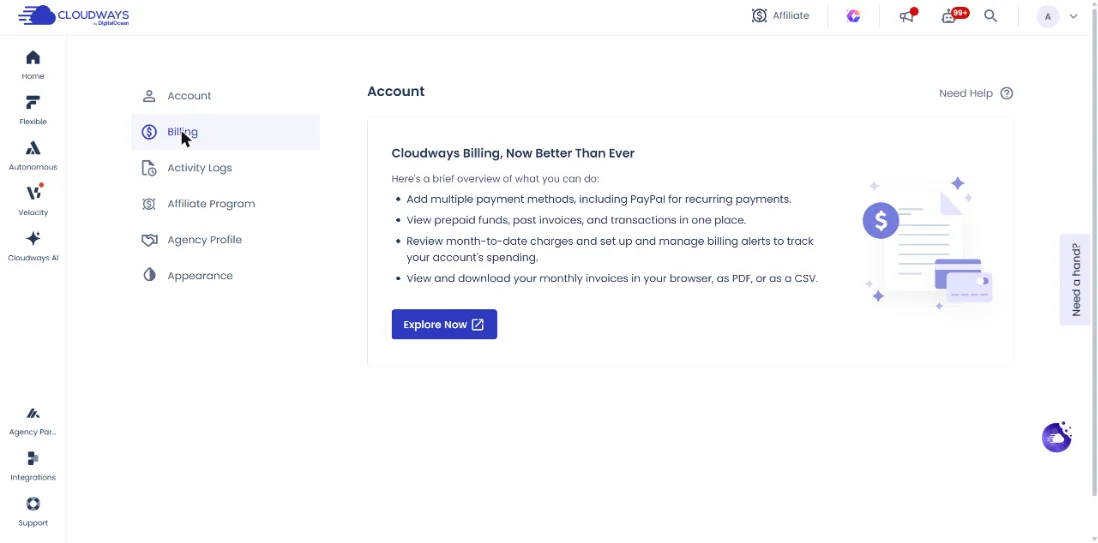
- Download invoices. Your accountant will need them. After the account is closed you won’t have access to the platform. How to download them: invoices and payment methods.
- A client’s server? If you’re an agency and a client is leaving, it may be better to transfer the server to them rather than delete it. See transferring a server between accounts. And if a client is simply changing site managers, it’s enough to remove your access and give access to someone else, per the guide to team members and permissions.
- A technical or billing problem? Cloudways itself recommends contacting support by chat before canceling. Often a performance problem is solved by changing a setting, and an expensive server can be swapped for a smaller one. Compare sizes on the pricing page.
How do you delete a Flexible server, step by step?
Deleting the server is the step that really stops most of the billing. It deletes all the applications on it.
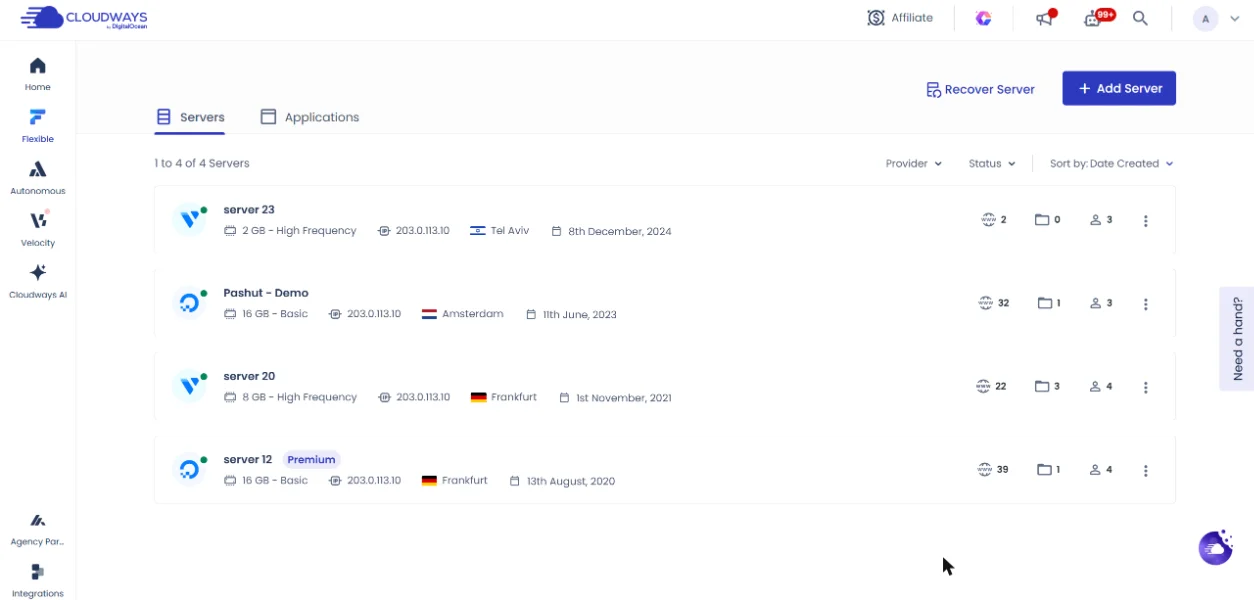
- Log in to the platform, choose Flexible in the side menu and then Servers.
- Find the server and click the three dots at the right of its row.
- Choose Delete.
- Go through the deletion warnings, choose a reason when asked, and confirm.
- Repeat for every server that needs deleting, including forgotten clone and test servers.
From the moment of deletion, billing for the server stops. The hours you accumulated until then will appear on the next invoice.
How do you cancel paid add-ons?
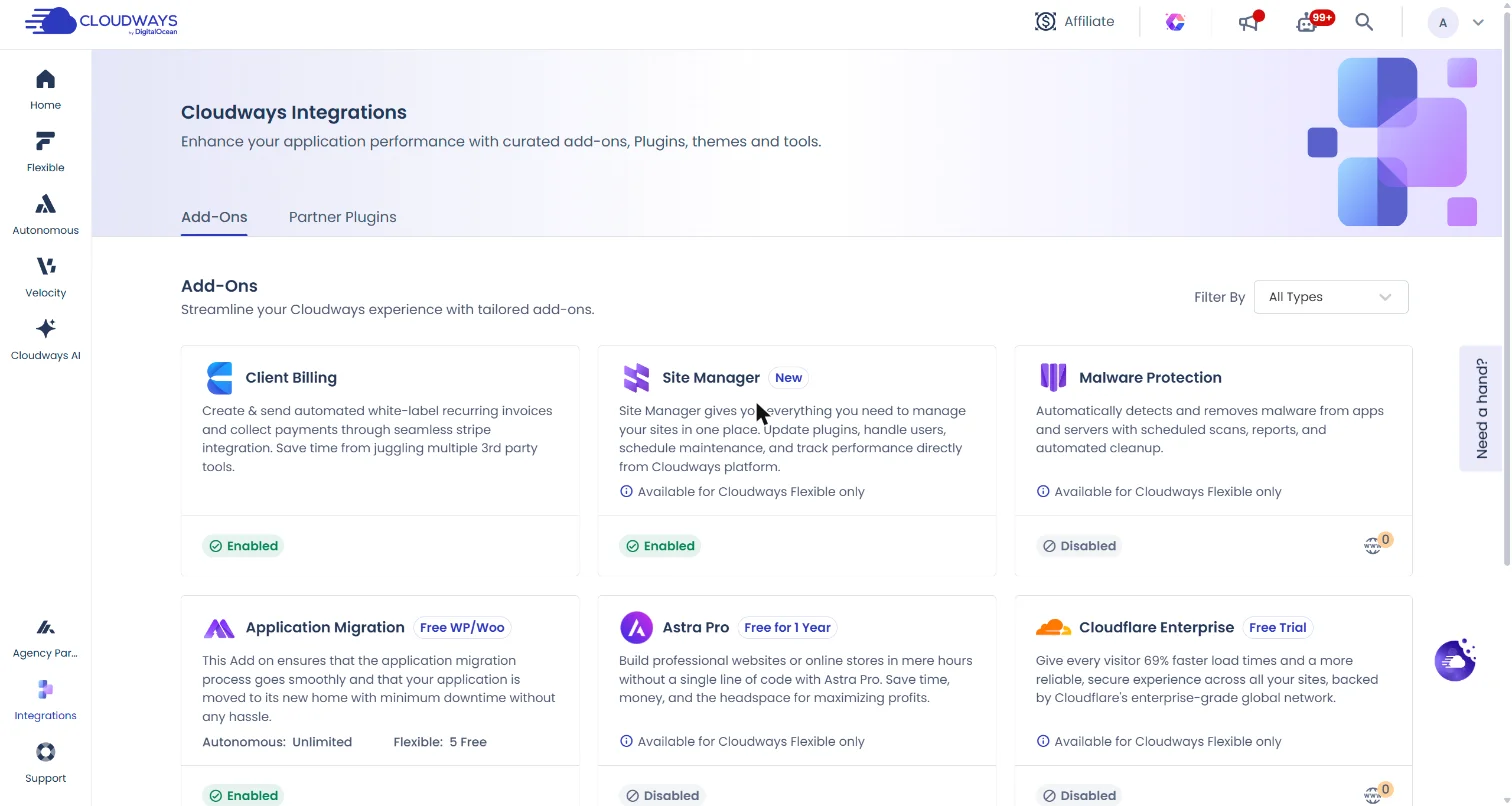
Add-ons such as Rackspace, DNS Made Easy or Elastic Email are billed separately from the server, and sometimes keep billing even with no servers. This matters especially if you’re leaving the account open.
- Open the Add-ons area. According to the current documentation it’s in the Grid menu in the top bar. In the unified interface, look for it under Integrations in the side menu.
- Go through the list of active add-ons.
- For each paid add-on you don’t need, click Edit and then Remove Subscription.
How do you cancel an Autonomous subscription?
In Autonomous, each plan holds one application. Billing is by the hour, so an application that ran for one hour is billed for one hour. Pricing details are in the guide to Cloudways Autonomous pricing. How you cancel depends on whether your plan is new or an older one (Legacy).
A regular Autonomous plan
- In the side menu choose Autonomous and then My Applications.
- On the application’s row click the three-dot menu (⋮) and choose Delete Application.
- Read the warning, type DELETE in the confirmation field and click Delete.
- Choose up to three reasons for deleting and click Next. Answer the follow-up questions and click Done.
According to Cloudways, at the end of this process the plan is canceled immediately and billing on it stops.
An older Autonomous plan (Legacy)
There’s a trap here: deleting the application doesn’t cancel the plan. If you close the window halfway, the plan keeps billing. And the reverse is also true: you can’t cancel a plan while an application is still installed in it.
- Check the plan: Autonomous, then Plan Overview. The monthly price appears next to Manage Plan.
- Delete the application: My Applications, the ⋮ menu, Delete Application, type DELETE and confirm.
- In the Application Deleted Successfully window click Unsubscribe Plan.
- Choose at least one reason (up to three) and click Next, then answer the needs question and click Next.
- On the screen that offers a conversation with the team, click Unsubscribe Plan to continue.
- On the last screen click the red Unsubscribe Plan button. Only here is the plan really canceled.
Closed the window after the deletion? The plan is still active, and the cancel button doesn’t appear in My Applications. Click Recover Application at the top right, then View Plan Details, and from there Unsubscribe Plan, and continue as in steps 4–6. Clicking Recover Application only opens the options. It doesn’t restore anything until you choose an application and confirm.
Canceling a trial period
The Autonomous trial lasts 3 days and doesn’t require a credit card. To end it early, delete the trial application from the application list and type Delete to confirm. Deleting the application cancels the trial automatically.
The Flexible trial lasts 5 days, also with no credit card. As long as you haven’t added a payment method, there’s no charge. According to Cloudways, after you add a card, the active trial is automatically upgraded to a paid account before it ends, and the trial server keeps running at regular billing. Adding a card triggers a temporary $1 verification charge that is refunded. Don’t want to continue? Delete the server as described above, preferably before adding a card.
Closing your Cloudways account permanently
Once you have no servers, add-ons or subscriptions, you can close the account. Cloudways doesn’t close accounts on behalf of customers, for security and privacy reasons, and only the account owner can do it.
- Make sure all servers are deleted, all add-ons canceled, and there’s no active Autonomous subscription. Without that, the button won’t let you close.
- Pay any open invoices, if there are any.
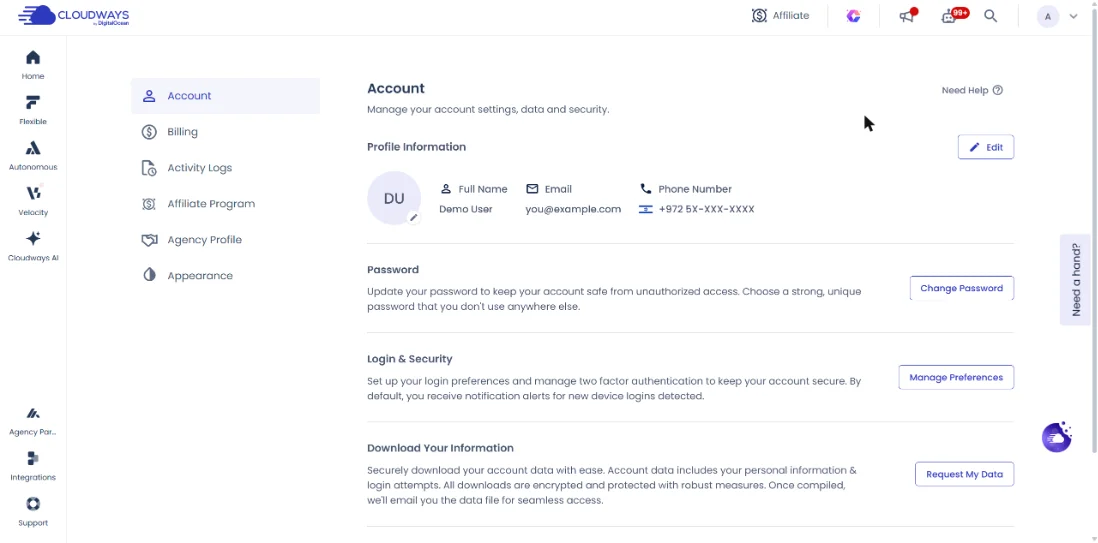
- Click the profile icon in the top bar and choose Account.
- Scroll to the bottom of the page and read the cancellation information.
- Click Cancel My Account and confirm.
If you ask, support can confirm in chat that all servers were deleted, all add-ons canceled and that there will be no further charges beyond the last invoice. It’s an optional step, but it saves you stress at the start of the month.
Account balance: according to Cloudways, you can ask for a refund of unused prepaid funds within three months of the original payment date, subject to review and their refund policy. For promotional credits, or an older balance, I have no source, so check with support or the billing team before you close the account. After closing, there’s no access to the platform.
| Action | What happens to the data | Can you come back? |
|---|---|---|
| Deleting an application on an existing server | Deleted | Sometimes, if there’s a backup from before the deletion |
| Deleting a Flexible server | Deleted with all its applications | Only through support, if a backup was kept, and in a full account. The IP address may change |
| Deleting an application in Autonomous | Deleted | Recover Application (for users who signed up after 11 Nov 2025). Restoring starts billing again immediately |
| Closing the account | Everything is deleted permanently | No. You can only return by signing up again with a different email address |
The code BFCM802 takes 80% off your bill for the first two months (up to $200 off per month), including unlimited free site migrations. New customers only, and only until the offer ends.
The offer ends on December 4, 2026 at 23:59 (UTC+2).
Start with a free trial, no credit card. Enter the code at checkout and check that it shows up.
After Black Friday: 30% off for 3 months with the code ASAEL. On a large server (above about $444 a month) ASAEL already saves more today. BFCM802 vs. ASAEL calculator
Start a free trial server, no credit card. When you move to a paid plan, the code ASAEL takes 30% off your bill for the first three months.
The link fills in the code on the signup form. Just make sure it shows up.
Common mistakes and how to fix them
“I stopped the server and still got an invoice”: stopping doesn’t stop billing, because the resources are still allocated to you. Only deleting the server stops billing.
“I deleted everything and was still charged at the start of the month”: that’s the last invoice, for the hours between the start of the month and the moment of deletion. It always arrives, because billing is in arrears. There shouldn’t be charges after it.
“I deleted the application in Autonomous and billing continued”: you probably have an older plan, where deleting doesn’t cancel the plan. Go to Recover Application, then View Plan Details, and cancel from there.
“I forgot a clone server”: a server you cloned for testing is billed like any server. Go through the server list in every project, not just the main one.
“I recovered an application in Autonomous just to take a look”: confirming the recovery restarts the plan subscription and billing immediately. If you only wanted to cancel, don’t confirm a recovery.
“I want to remove my credit card”: you can, but only after the final invoice is paid and the account is canceled. Removing it early doesn’t stop billing, it just causes an invoice that can’t be collected.
Sources
The official sources this page is based on (checked 7 Nov 2026):
- Cloudways Knowledge Base: How do i stop my cloudways billing
- Cloudways Knowledge Base: How do i cancel my account
- Cloudways Knowledge Base: How to unsubscribe from cloudways autonomous plan
Frequently asked questions
No. On DigitalOcean, Vultr and Linode a stopped server is billed exactly like an active one. On AWS and Google Cloud billing drops to a minimum for disk and IP address, but doesn’t reach zero. Only deleting the server stops billing.
Because Cloudways bills in arrears. The hours the server ran in the last month are charged at the start of the next month, in one final invoice. There shouldn’t be further charges after it.
No. An account with no servers, no paid add-ons and no Autonomous subscription isn’t billed at all. Leaving the account open is useful if you want to come back, because a closed account can’t be reopened.
No. Closing is irreversible, and all servers, applications and data are deleted permanently. To come back you need to sign up again with a different email address.
In the Autonomous trial, delete the trial application and the trial ends. In the Flexible trial, delete the server. As long as you haven’t added a credit card, there’s no charge at all.
No. For security and privacy reasons only the account owner can delete servers and close the account. Support can check and confirm that no billable resources are left.
Related guides
- How Cloudways billing works: hourly and monthly
- Cloudways Autonomous pricing and switching between plans
- Invoices and payment methods on Cloudways
- Team members and server access permissions
- Transferring a server between Cloudways accounts
- Recommend Cloudways to clients? The Cloudways affiliate program · Two-Tier: earning from sub-affiliates · Comparing hosting affiliate programs
- All guides on this topic: Account, team and billing on Cloudways
- Cloudways pricing 2026
Official sources: How Do I Stop My Cloudways Billing?, How Do I Cancel My Account?, How to Unsubscribe from Cloudways Autonomous Plan (Cloudways Knowledge Base). Written and checked by Asael Dreyer · Updated: 6 Nov 2026
Disclosure: this is an independent site, not the official Cloudways site. Some links on this site are affiliate links: if you sign up through them we earn a commission, at no extra cost to you. Full details

